The best screenshot tool
for vibe coding.
Stash is the best screenshot tool for Mac and the best clipboard manager for Mac — purpose-built for vibe coding. Capture, annotate, paste — with full AI context. Three clicks. Under three seconds. The fastest way to get visual information to your AI coding assistant.
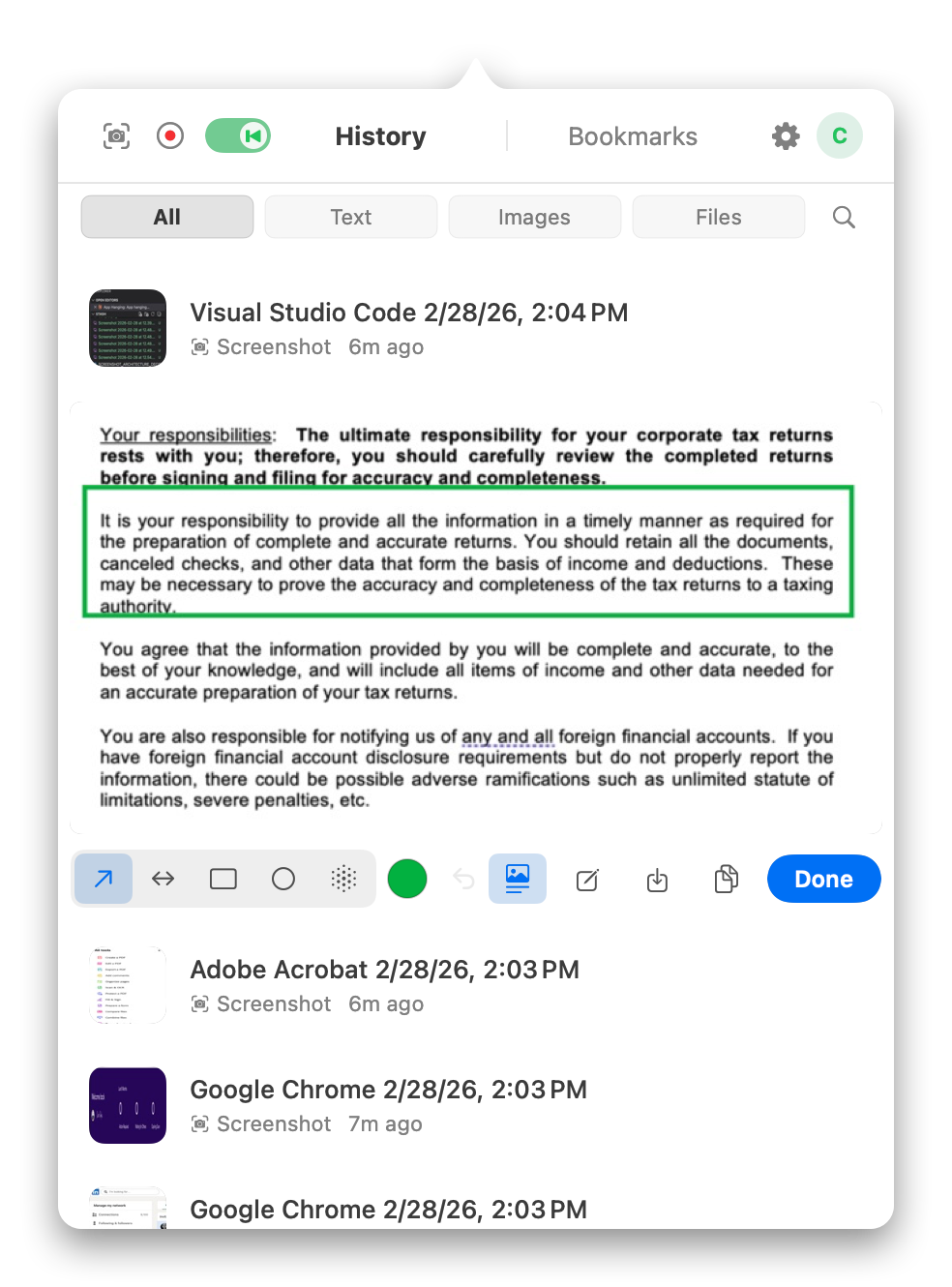
Your screenshot tool is slowing down
your vibe coding.
5 steps for one screenshot
Screenshot, open Preview, annotate, save, drag into chat. With Stash? Three clicks.
AI can't read your arrows
You drew an arrow at the bug. AI just sees pixels. You type what you already pointed at.
Can't show a sequence
The bug needs click A → B → C. One screenshot can't show that, and AI can't watch videos.
Zero context reaches the AI
Which app? What OS? Dark mode? Zoom level? You type it all manually. Every. Single. Time.
Stash solves every one of these.
Three clicks.
That's the whole workflow.
Press a hotkey, select a region, draw an arrow. The annotated image is on your clipboard instantly — with full AI context. No saving, no exporting, no dragging files. Paste directly into Claude, ChatGPT, or Cursor.
Every screenshot and video arrives with full context.
Stash embeds structured metadata so the AI understands exactly what you're showing — without you typing a word.
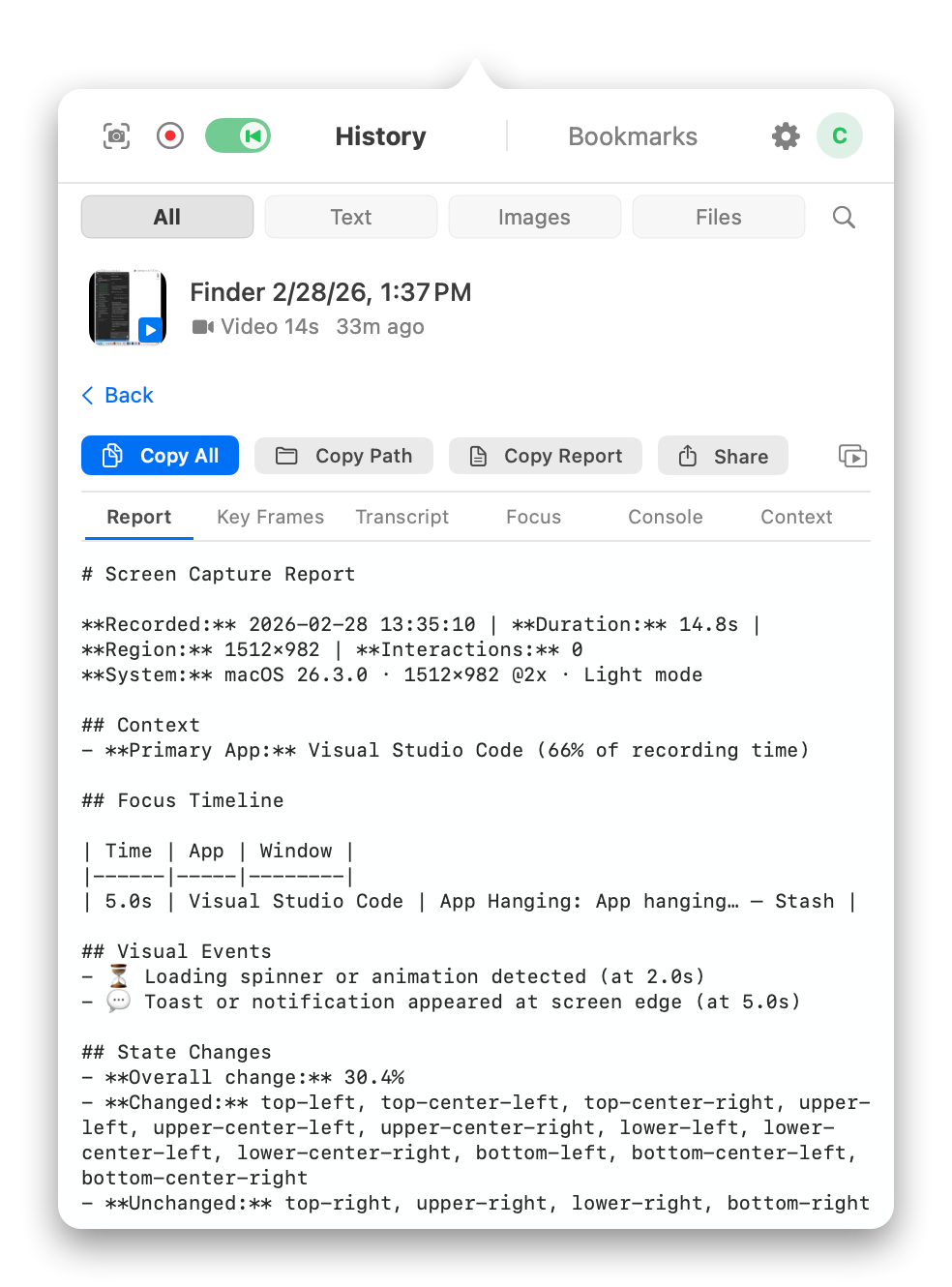
Show the AI what happened — not just what it looks like.
The problem: AI can't process raw screen recordings — it sees only a single frame or nothing at all. The solution: Press ⌘⌃R to record any screen interaction with voice narration (up to 20 minutes), or enable Instant Replay to always have the last 30–120 seconds on tap. Stash produces an AI Capture Report — key frames, voice transcript, interaction log, focus tracking, and console OCR. Paste the entire output into Claude, ChatGPT, Cursor, or any AI tool for complete understanding.
Voice narration
Narrate while demonstrating — transcript interleaves with the interaction timeline
Instant Replay
Rolling buffer captures the last 30–120 seconds. Press ⌘⌃R to save what just happened
AI Capture Report
Unified timeline with transcript, interaction log, focus tracking, console OCR, and key frames
One hotkey to paste context into Claude Code.
Terminal AI tools can read images from file paths — but they can't accept pasted image data. Press ⌘⌃P after any capture and Stash copies the file path plus enriched context to your clipboard. One paste gives your AI everything.
Screenshot from Safari
Window: "Pull Request #42 — GitHub"
https://github.com/org/repo/pull/42
2026-02-09 at 14:30
Annotations: 2 arrows, 1 rectangle
/Users/chris/Desktop/Screenshot 2026-02-09.png
Plus everything you need to stay in flow.
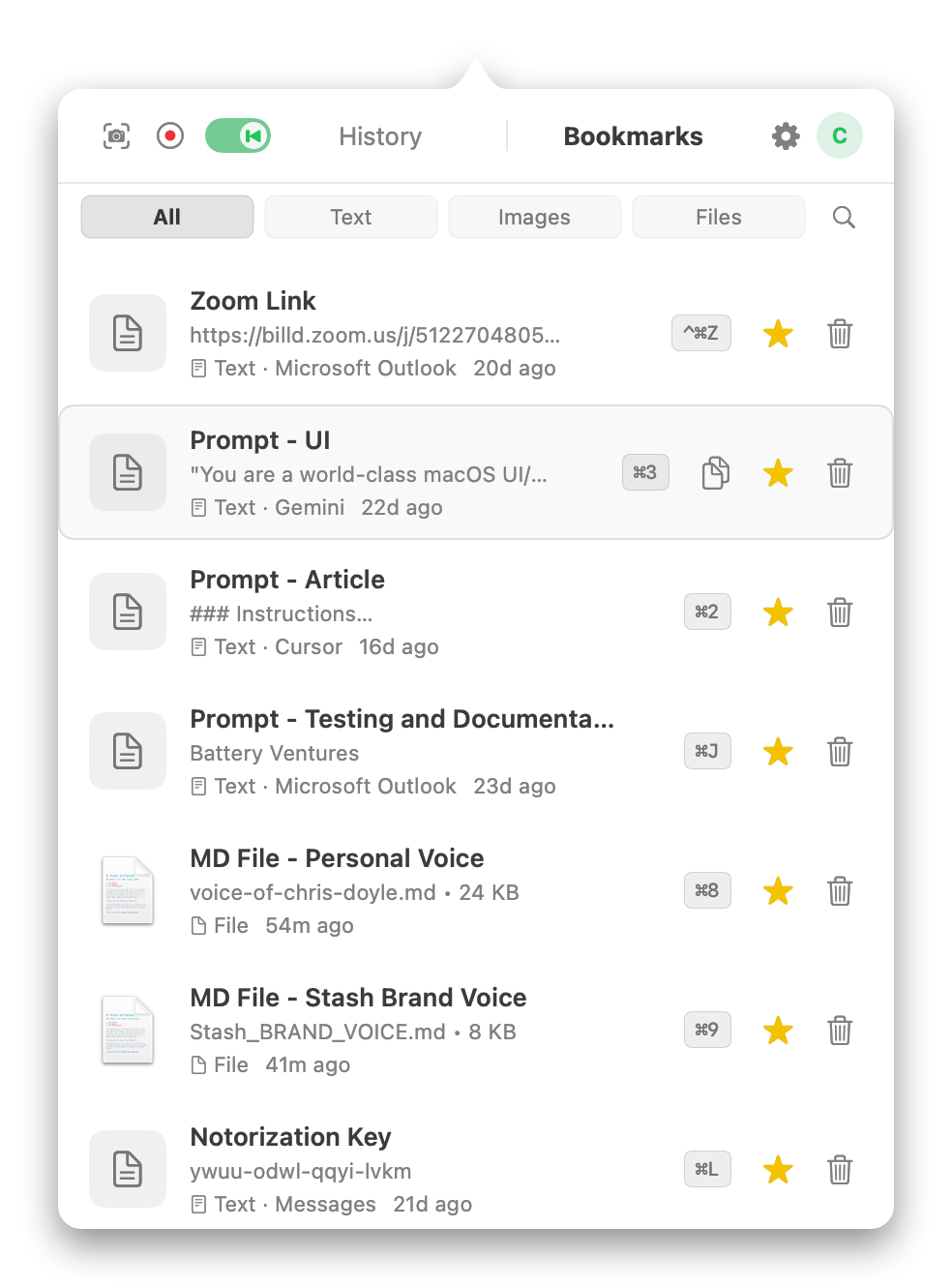
Your best prompts, one hotkey away.
Bookmark your system prompt, code review template, or any snippet. Assign a global hotkey. Press ⌘J to paste from anywhere — no app switching.
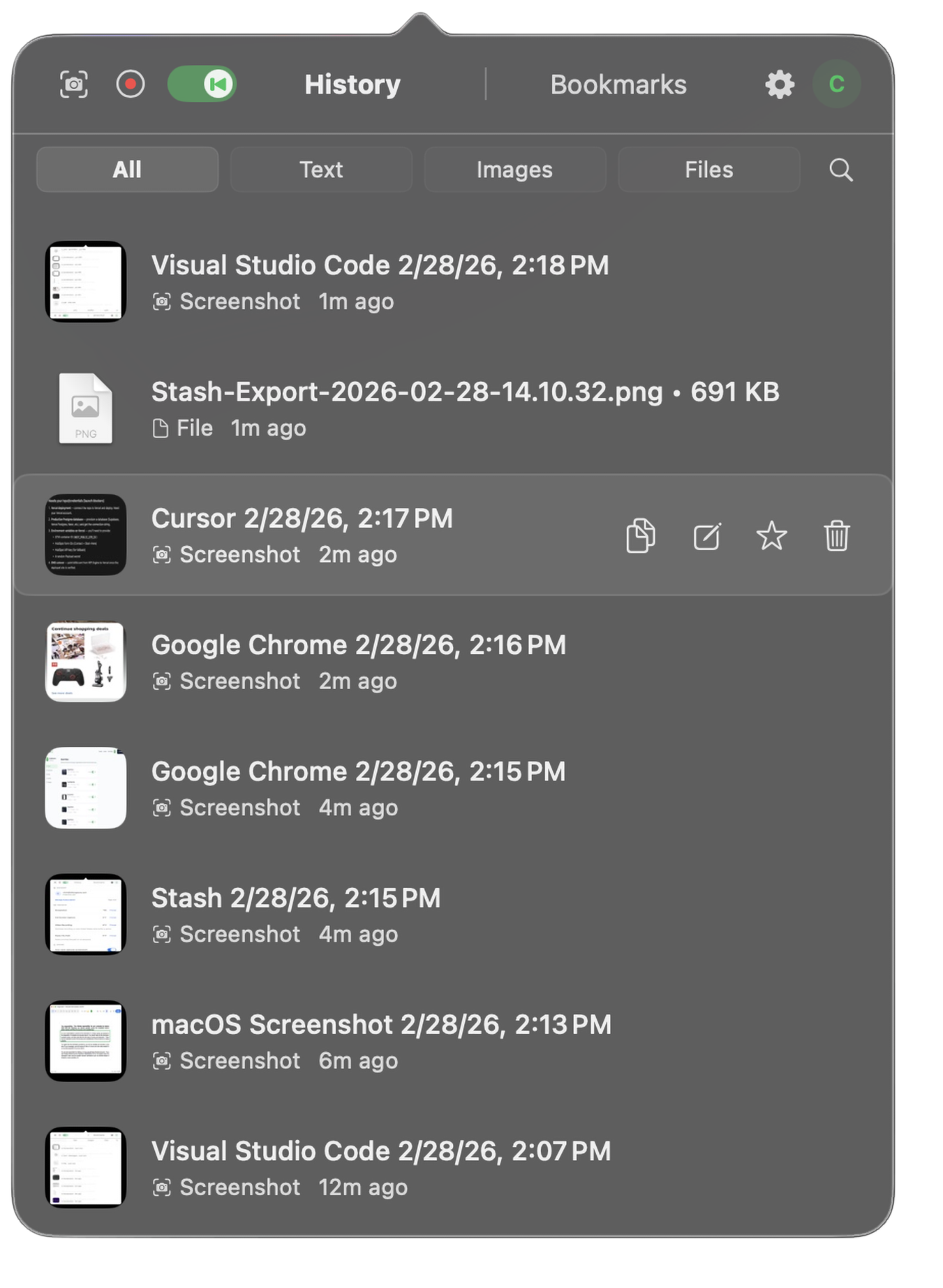
Never lose a code snippet again.
Unlimited history for text, images, and code. Filter by type, see which app each clip came from. 100% local — your data never leaves your Mac.
Questions about the best screenshot tool for vibe coding.
Can AI actually read my annotations?
Yes. Stash converts arrows, rectangles, and ellipses into structured text metadata that AI can parse. When you paste a screenshot into Claude or ChatGPT, the AI reads your annotations as user callouts — not as part of the original UI. This solves the "visual context gap" where AI tools can't distinguish your markup from the actual interface.
Does this work with Claude, ChatGPT, Cursor, and other AI tools?
Yes. Stash works with any AI tool that accepts image inputs. AI Context Banners are composited directly onto the image (not stored in metadata that gets stripped), so Claude, ChatGPT, Cursor, Windsurf, GitHub Copilot Chat, and any other multimodal AI can see the full context.
What's an AI Context Banner?
An AI Context Banner is metadata automatically added to every screenshot: app name, window title, macOS version, display resolution, timestamp, color space, and scale factor. AI tools strip standard image metadata (EXIF, IPTC), so Stash composites this context directly onto the image where AI can see it.
How does Video Capture work for AI?
AI can't process raw screen recordings — it sees only a single frame. Stash's Video Capture records your screen and voice, then produces an AI Capture Report with key frames, voice transcript, interaction log, focus tracking, and console OCR. Instant Replay mode continuously buffers the last 30–120 seconds so you never miss a bug. Paste the report into your AI tool for complete understanding.
Is my clipboard data private?
Yes. All data is stored locally in ~/Library/Application Support/Stash/. No cloud sync, no telemetry, no network requests for clipboard or screenshot data. SQLite database + local file storage only. Your clipboard history never leaves your Mac.
What are the keyboard shortcuts?
⌘⇧V — Open Stash
⌘⌃S — Capture screenshot (region, window, or full screen)
⌘⌃R — Video Capture (record with voice) or save Instant Replay
⌘⌃P — Copy file path with enriched context (for terminal AI tools)
You can also assign custom hotkeys (up to 20) to your bookmarked clips for instant paste from any app.
Does Stash work with terminal AI tools like Claude Code?
Yes. Terminal AI tools can read image files but can't accept pasted image data — they need a file path. Press ⌘⌃P after any capture and Stash copies the file path plus enriched context (source app, window title, browser URL, annotation summary) to your clipboard as plain text. One paste into Claude Code gives it everything: the context to understand what you're showing and the file path to read the image.
What macOS version do I need?
Stash requires macOS 13.0 (Ventura) or later. It works on both Apple Silicon and Intel processors. The app is under 15 MB and currently free during public beta.
The best screenshot tool for vibe coding.
Download Stash.
Three clicks. Full context. The fastest way to get visual information to AI. Free for Mac.