Six features. Zero compromises.
Stash is the best clipboard manager for Mac and the best screenshot tool for Mac — with hotkey paste, AI-ready screenshots, Video Capture, and privacy-first local storage in one native app.
Everything you copy, saved.
The best clipboard manager for Mac automatically captures text and images as you work. Your clipboard history is always one click away in the menu bar.
- Automatic capture of all copied text and images
- One-click access from the menu bar
- Permanent bookmarks for frequently used clips
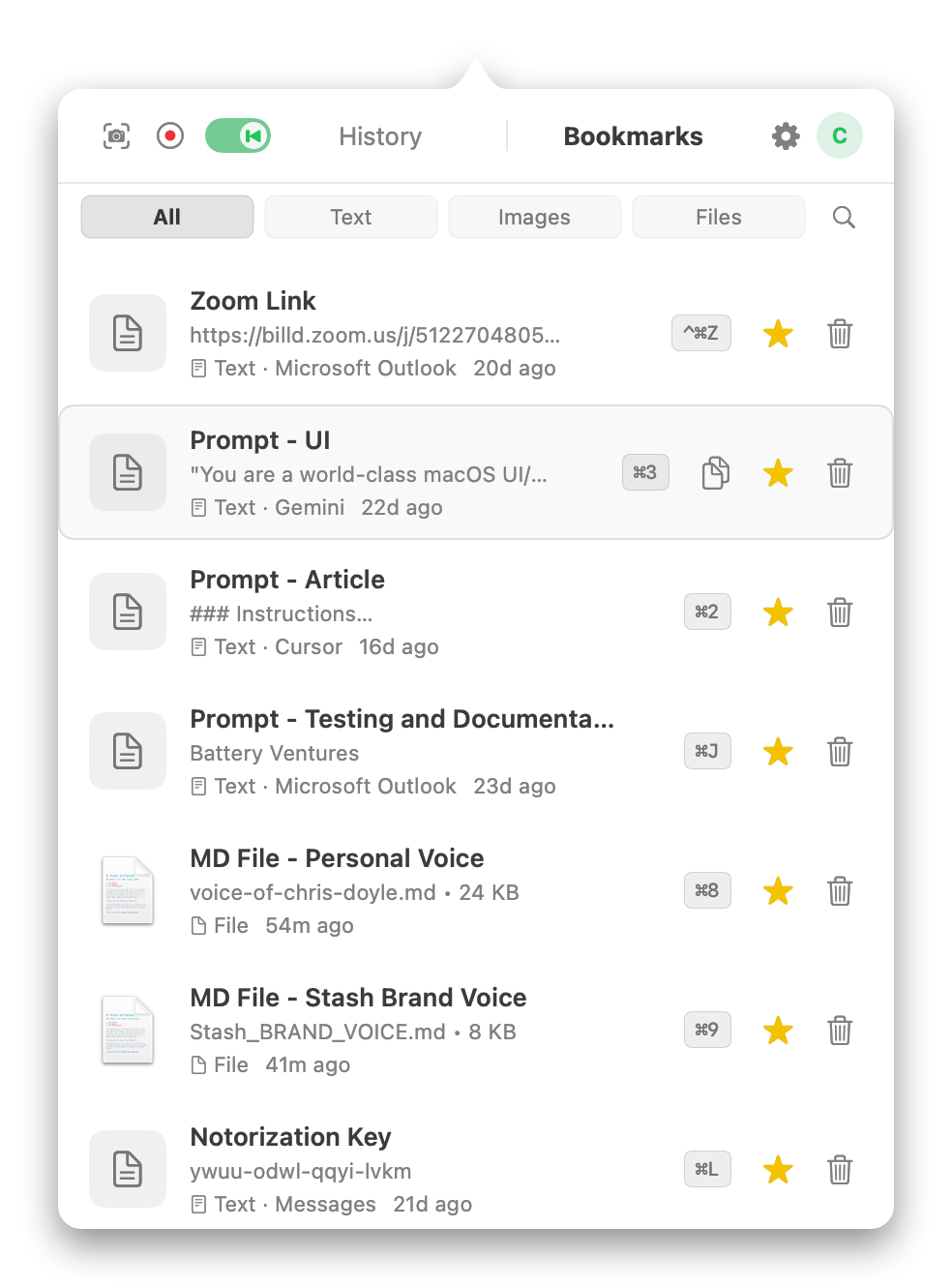
Never lose a code snippet, API key, or important link again. Everything you copy is saved locally and searchable. Filter by type (text, images, code), see which app each clip came from, and bookmark your most-used clips for instant access.
Instant paste with hotkeys.
Assign keyboard shortcuts to your most-used clips. Press the hotkey from any app and it pastes instantly.
- Up to 20 custom keyboard shortcuts
- Press hotkey from any app — content pastes instantly
- Auto-assigned on bookmark creation
- Default shortcut:
⌘⇧Vto open Stash
Bookmark your Zoom link, email signature, project brief, or AI prompt. Assign a hotkey like ⌘J or ⌘K. Press it from anywhere — Slack, email, browser, terminal — and it pastes instantly. No app switching, no scrolling through Notes, no searching.
Capture and annotate screenshots.
The best screenshot tool for Mac. Take screenshots, add arrows and annotations, and share with one click. Built for professionals who move fast, want fewer clicks, and often use screenshots for AI.
⌘⌃Sto capture (region, window, or full screen)- Built-in annotation: arrows, rectangles, ellipses, blur
- Compact color picker (7 colors)
- Auto-copy on each edit — no save step
- One-click sharing workflow
Press ⌘⌃S, select the region, and an annotation overlay appears instantly. Draw an arrow to point at the bug, add a rectangle around the UI element, blur sensitive data. The moment you draw, the annotated image is copied to your clipboard automatically. No save dialog, no file management, no exporting. Just ⌘V into Slack, Jira, email, or any app that accepts images.
Private by design.
Your clipboard data never leaves your Mac. No cloud sync, no tracking. Everything stays local.
- All data stored locally in
~/Library/Application Support/Stash/ - No cloud sync, no telemetry
- No network requests for clipboard or screenshot data
- SQLite database + local file storage only
Stash stores everything locally. No servers, no cloud. Your clipboard history contains sensitive data — API keys, passwords, private messages, code, screenshots of internal tools. We don't want your data, and you shouldn't have to trust us with it. Stash makes zero network requests related to your clipboard content. The only network activity is checking for software updates via Sparkle (open source), which only sends your current app version number.
Built for vibe coding.
Stash is the best screenshot tool for vibe coding. Every screenshot is annotated with app name, window title, OS version, display resolution, and more — the full context AI needs. Your arrows and rectangles are described as callouts, not confused with the original image.
- AI Context Banner automatically composited onto screenshots:
- App name and window title
- OS version and display resolution
- Timestamp
- Color space and scale factor
- Annotations (arrows, rectangles, ellipses) are described in structured text metadata
- AI reads annotations as user callouts, not as part of the original UI
- Solves the "visual context gap" — AI tools strip image metadata and can't distinguish annotations from UI elements
When you paste a screenshot into Claude or ChatGPT, AI tools strip standard image metadata (EXIF, IPTC). They can't tell which app the screenshot is from, what OS version you're running, or whether your red arrow is part of the UI or your annotation. Stash composites an AI Context Banner directly onto the image and converts your annotations into structured text metadata. The AI sees: App: Visual Studio Code | macOS 14.2 | 2560×1440 @2x — plus descriptions of your callouts. No typing required.
Screen recordings AI can read.
AI can't process raw video. Record any interaction with ⌘⌃R and narrate with your voice, or enable Instant Replay to always have the last 30–120 seconds on tap. Stash produces an AI Capture Report — key frames, voice transcript, interaction log, and full context — ready to paste into any AI tool.
- Video Capture (
⌘⌃R) — record screen + voice up to 20 minutes - Instant Replay — rolling buffer silently records the last 30–120 seconds (no audio, no storage). Press
⌘⌃Rto save what just happened. - Two copy modes:
- Copy All — report + key frames + audio on clipboard, paste into Claude, ChatGPT, Gemini
- Copy Folder Path — paste into Claude Code, Cursor, or terminal tools
- AI Capture Report includes:
- Voice transcript interleaved with interaction timeline
- Click tracking with "nothing happened" and retry detection
- Console/error OCR from terminal and DevTools
- Focus tracking across app switches
- Key frames extracted at interaction, voice, and visual-change events
- State change analysis (what changed vs. what didn't)
The core problem: AI cannot process raw screen recordings — it sees only a single frame or nothing at all. The user's intent, the interaction sequence, and the temporal context are all lost.
The Stash advantage: One recording becomes a structured AI report. Press ⌘⌃R, narrate what you're doing, and Stash captures every click, every app switch, every console error, and your voice — then generates a unified Capture Report. Paste the full output into Claude, ChatGPT, Cursor, or any AI tool for complete understanding with zero follow-up questions.
How Video Capture replaces screen recordings for AI feedback →
Six features. One app. Free during beta.
The best clipboard manager and screenshot tool for Mac. Download Stash and get all features for free during public beta. Native macOS, under 15 MB.
Download for Mac — Free